
Ever set a wallpaper on your iPhone 14 only to find it looks blurry, zoomed, or awkwardly cropped? You’re not alone and the issue usually isn’t your image.
It comes down to using the wrong wallpaper dimensions.
Modern iPhones like the iPhone 14 use precise screen resolutions, aspect ratios, and pixel densities. If your wallpaper doesn’t match these, even a high-quality image can look bad.
In this complete guide, you’ll learn:
- The exact iPhone 14 wallpaper size
- Why wallpapers get blurry or cropped
- How to create and fit wallpapers perfectly
- Pro tips most guides don’t mention (like parallax and safe zones)
What Is the iPhone 14 Wallpaper Size?
Quick Answer (Featured Snippet Ready)
The ideal iPhone 14 wallpaper size is:
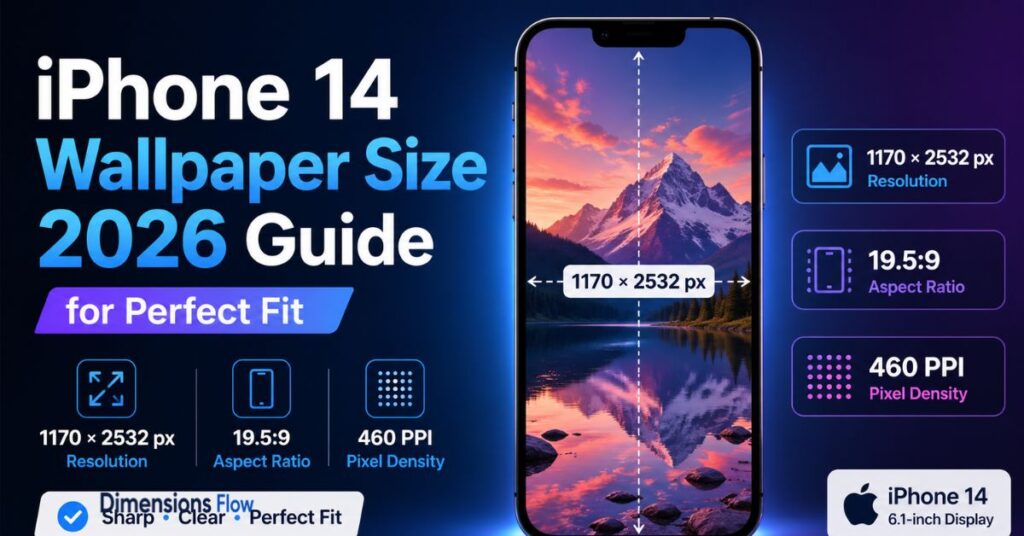
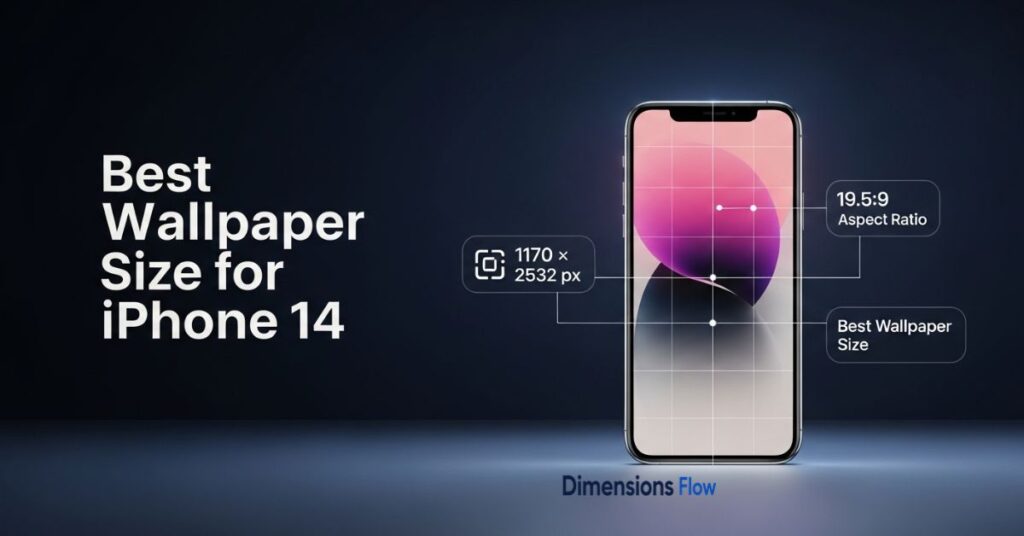
- 1170 × 2532 pixels
- Aspect ratio: 19.5:9
- Pixel density: ~460 PPI
This matches the iPhone 14’s native screen resolution, ensuring a perfect, sharp fit without distortion.
iPhone 14 Wallpaper Dimensions Breakdown
| Feature | Value |
|---|---|
| Screen Size | 6.1 inches |
| Resolution | 1170 × 2532 pixels |
| Aspect Ratio | 19.5:9 |
| Pixel Density | 460 PPI |
| Display Type | Super Retina XDR OLED |
At 460 pixels per inch, the iPhone 14 display is extremely sharp meaning even small quality issues in your wallpaper become noticeable.
Why Exact Wallpaper Dimensions Matter
Most people assume “bigger image = better quality.” That’s only partly true.
Here’s what actually happens:
❌ Using a smaller image:
- Causes blur and pixelation
- Image gets stretched to fit screen
- Loss of detail becomes visible on high PPI displays
❌ Using the wrong aspect ratio:
- Leads to cropping or zooming
- Important parts of your image get cut off
✅ Using correct dimensions:
- Perfect fit (no scaling issues)
- Maximum sharpness
- No distortion
💡 Expert Insight:
A 1080p image (1920×1080) may look sharp on a laptop but on an iPhone 14, it’s actually lower resolution than the screen, causing visible softness.
The Hidden Factor: iOS Parallax Effect
Most guides ignore this but it’s critical.
What is Parallax?
The parallax effect makes your wallpaper slightly move when you tilt your phone.
Why it matters:
- iOS uses a slightly larger image area than the visible screen
- If your wallpaper is exactly 1170×2532, it may still zoom or crop
✅ Pro Tip:
Use a slightly larger image:
- Recommended: 1250 × 2700 pixels (safe buffer)
When to disable it:
- If you want perfect static alignment
- Go to:
- Settings → Wallpaper → Turn off Perspective Zoom
Best Wallpaper Size for iPhone 14 (Pro Tips)
To get perfect results every time, follow these expert recommendations:
✔ Use slightly larger images
- Native: 1170 × 2532
- Ideal working size: +5–10% larger
✔ Choose the right format
- PNG → Best for graphics & text
- JPEG / HEIC → Best for photos
✔ Download high-resolution images
- Avoid:
- Social media images (compressed)
- Screenshots from other devices
How to Find Your iPhone 14 Wallpaper Size
Even though this guide focuses on iPhone 14, here are foolproof methods:
Method 1: Screenshot Trick (Fastest)
- Take a screenshot
- Open it in Photos
- Tap the info icon (i)
You’ll see:
- 1170 × 2532 pixels
That’s your exact wallpaper size.
Method 2: Check Settings
- Go to: Settings → General → About
- Confirm your model (iPhone 14)
Method 3: Apple Official Specs
Apple confirms:
- Resolution: 2532 × 1170 pixels at 460 PPI
How to Make a Perfect iPhone 14 Wallpaper
Creating your own wallpaper gives you full control.
Step-by-Step Guide
1. Set Canvas Size
- Use: 1170 × 2532 pixels
2. Design Smartly
- Keep main subject centered
- Avoid edges (UI overlaps)
3. Respect Safe Zones
Important areas to avoid:
- Top: notch area
- Bottom: icons & dock
4. Export Settings
- PNG (for sharp graphics)
- High-quality JPEG (for photos)
Recommended Tools
- Canva
- Adobe Express
These tools allow custom resolution input, making wallpaper creation easy.
How to Fit Any Image as iPhone 14 Wallpaper
Got a photo that doesn’t fit? Here’s how to fix it:
Method 1: Manual Adjustment
- Open: Settings → Wallpaper → Add New
- Use:
- Pinch to zoom
- Drag to reposition
Method 2: Turn Off Zoom
- Disable Perspective Zoom
- Prevents unwanted cropping
Method 3: Resize Before Upload
- Use editing apps to match:
- 1170 × 2532 resolution
Aspect Ratio Explained (Why 16:9 Doesn’t Work Well)
iPhone 14 uses:
- 19.5:9 aspect ratio
Common mistakes:
| Ratio | Result |
|---|---|
| 16:9 | Cropped top & bottom |
| 4:3 | Zoomed in |
| 1:1 | Major cropping |
✅ Best practice:
Always match 19.5:9 to avoid distortion.
Common Wallpaper Mistakes (And Fixes)
❌ Mistake 1: Using low-resolution images
✔ Fix: Use images ≥ 1170×2532
❌ Mistake 2: Ignoring aspect ratio
✔ Fix: Stick to 19.5:9
❌ Mistake 3: Placing subject near edges
✔ Fix: Keep focus in center
❌ Mistake 4: Using compressed images
✔ Fix: Download high-quality sources
❌ Mistake 5: Forgetting parallax
✔ Fix: Add buffer or disable zoom
iPhone 14 vs Other iPhones (Wallpaper Differences)
Understanding differences helps avoid mistakes when reusing wallpapers.
| Model | Resolution | Key Difference |
|---|---|---|
| iPhone 13 | 1170 × 2532 | Same as iPhone 14 |
| iPhone 14 | 1170 × 2532 | Standard baseline |
| iPhone 14 Pro | 1179 × 2556 | Slightly taller |
| iPhone 15 | 1179 × 2556 | Minor upgrade |
💡 Even small differences can cause:
- Cropping issues
- Slight zoom
FAQs About iPhone 14 Wallpaper Size
What is the best wallpaper size for iPhone 14?
The best size is 1170 × 2532 pixels, matching the native screen resolution.
Why does my wallpaper look blurry?
Because:
- Image is lower resolution than screen
- Or it’s being stretched
Can I use 16:9 wallpaper on iPhone 14?
You can but it will be:
- Cropped
- Or zoomed
How do I stop wallpaper zooming?
- Turn off Perspective Zoom
- Use exact resolution
What resolution should I export wallpapers in?
- Minimum: 1170 × 2532
- Ideal: slightly larger (for parallax)
🧾 Conclusion
Getting your iPhone 14 wallpaper size right makes a massive difference.
Instead of blurry or cropped images, you get:
- Crystal-clear quality
- Perfect alignment
- Professional-looking screen
✅ Key Takeaways:
- Use 1170 × 2532 pixels
- Match 19.5:9 aspect ratio
- Consider parallax effect
- Keep important elements centered
Once you apply these principles, your iPhone screen will go from average to stunning every single time.